Manage access with groups
Use this guide to grant access in bulk. A group is a reusable set of members that you configure once, then use anywhere you would otherwise add people one at a time. You'll create a group, add members, and grant access through it.
- Deployment: SaaS, On-premises
- Role: Owner, Admin
When you have more than a handful of members, grant access through groups instead of person by person. A group exists purely to hand out access to everyone in it at once.
Before you begin
To manage groups, you need all of the following:
- Owner or Admin on the organization: Managing users and groups requires one of these roles. On an on-premises deployment the Owner role is labelled Super Admin. See Roles reference.
- A clear reason the group exists: for example a group for your dev leads, so you can grant them a work area in one step.
There is no directory or SSO group sync. Groups are managed in CodeTogether AI.
1. Create the group
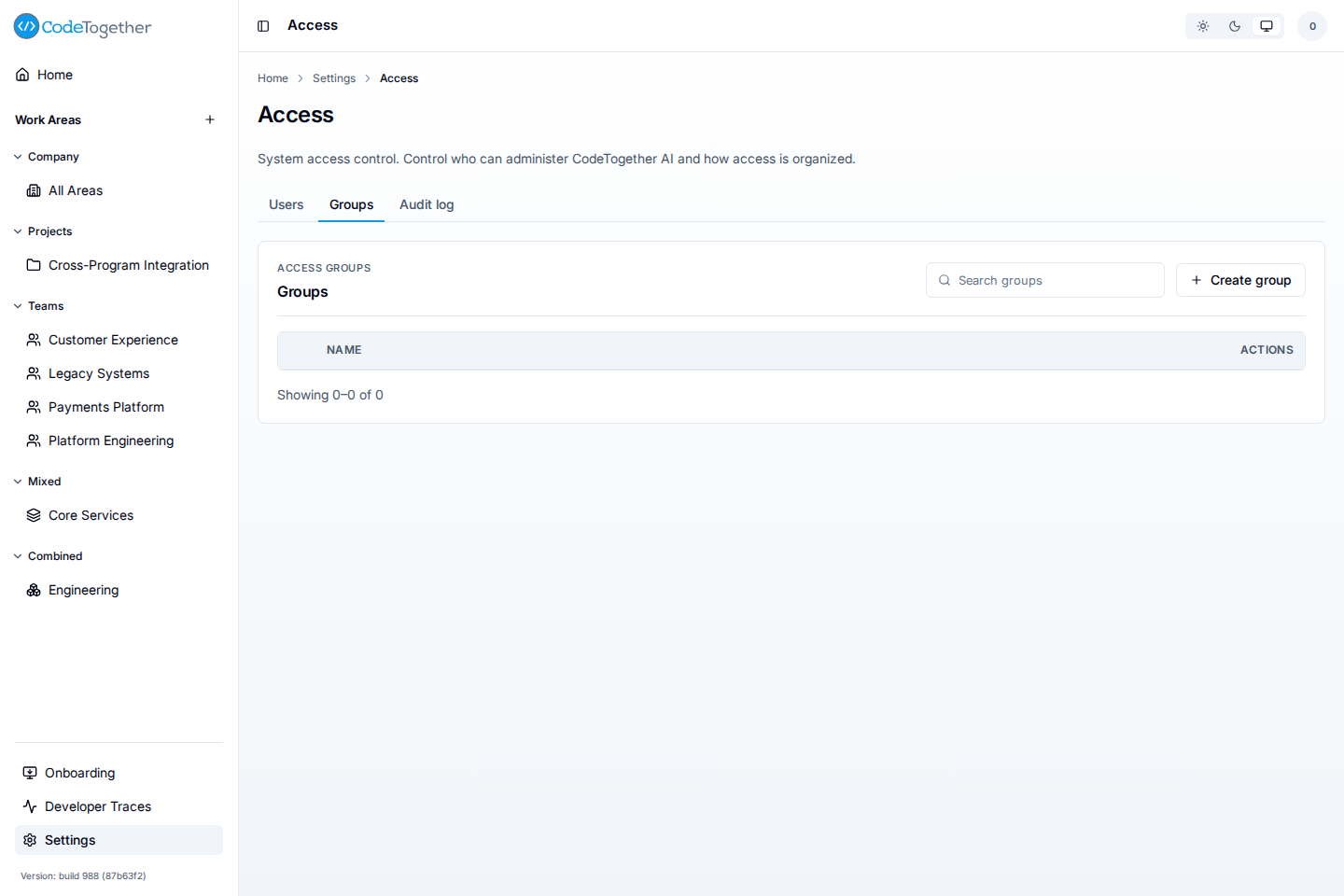
- Go to Settings > Access > Groups.
- Select Create group. The dialog runs in two steps, Name and Members.
- Name the group, then select Next.
- Search for and add its initial members.
- Select Create group to finish.
Afterward, Configure lets you rename the group, add or remove members, and set the conferred system role.
2. Choose how the group grants access
A group can grant access two ways, and you can use either or both:
- A conferred system role, set on the group itself. Open the group's Configure drawer and pick a conferred system role from the tenant roles, plus None. On-premises the list reads None, Super Admin, Admin, GlobalViewer, Member; on SaaS the same list reads Owner where on-premises reads Super Admin. Every member of the group inherits the role. Choose None to clear a role the group confers today.
- A work area role, granting the group Admin, Viewer, or Self Only on one work area. Everyone in the group inherits that work area access.
The option that reads Owner on SaaS reads Super Admin on an on-premises deployment. It is one role under two labels.
Use a conferred system role for organization-wide access, and a work area grant for access to one area.
3. Grant the group a work area role
The Groups page grants a work area role as well as a tenant role, so one screen holds everything a group confers.
- Go to Settings > Access > Groups.
- Select the expand control at the left of the group's row. A Work Areas panel opens, listing every work area the group is granted on, each with its role and a remove control. A group with none reads "No Work Area access."
- Under Add Work Area access, pick the work area, pick the role in Role to grant, and select Add. The role defaults to Viewer.
The work area's own Manage access drawer still grants the same thing, and the two views agree. Use whichever you already have open. See Create a work area for granting from the work area side.
4. Understand how grants combine
When a person's access comes from several places, a direct grant plus one or more groups, they receive the most permissive role across all of them. This applies even when the direct grant is Self Only: it narrows a person's own access, but a stronger role from a group grant on the same work area still wins. Adding someone to a group can only raise their access, never lower it.
Deleting a group revokes the roles it conferred from everyone in it. To revoke one person's access, remove them from the group instead.
Troubleshooting
A member has more access than expected
Access is the most permissive role across every source. Check the person's direct grants and every group they belong to, because any one of them can be the source. Expanding the person's row on Settings > Access > Users lists every work area they reach and labels each one direct or via the group that confers it.
Removing a member from a work area did not remove their access
If their access also comes from a group granted on that work area, removing the direct grant leaves the group grant in place. Remove them from the group, or remove the group's grant from the Work Areas panel on the group's row.
If this doesn't fix it
Contact support with all of the following. Tickets missing these take longer to resolve:
- The group name, its conferred system role, and the work areas it is granted on.
- The member whose access looks wrong, and the access you expected.
- Your deployment kind and server version.
Related
- Roles reference — the roles a group can confer.
- Invite users to your organization — adding a member to a group after they accept.
- Create a work area — granting a group a work area role from the work area.