Roles reference
Roles are granted at two independent scopes. Tenant roles control organization-wide administration. Work area roles control what a person can do inside one work area. Access is derived from both when a request is made, rather than stored as a fixed grant.
- Deployment: SaaS, On-premises
A user can hold a role directly, or inherit one from a group. Where both apply, the stronger role wins.
Tenant roles
Tenant roles apply across the whole organization. The wire value is the exact string the platform stores and reports for the role; the portal label is what the Role list shows you when you grant it. The following table lists them, strongest first:
| Role | Wire value | Portal label | Summary |
|---|---|---|---|
| Owner | Owner | Super Admin on-premises, Owner on SaaS | Full control, including billing and tenant deletion |
| Admin | Admin | Admin | All administration except billing and Owner changes |
| Global viewer | GlobalViewer | GlobalViewer | Read-only access to every work area |
| Member | Member | Member | Access to their own activity only |
An on-premises deployment labels the Owner tenant role Super Admin everywhere it is displayed or selectable, including the Role list on Settings > Access > Users, the conferred role on a group, and the audit log. SaaS labels it Owner. The wire value is Owner on both, so an API response, an export, or a support bundle reads Owner whichever label your portal shows. The work area role named Owner is a different role.
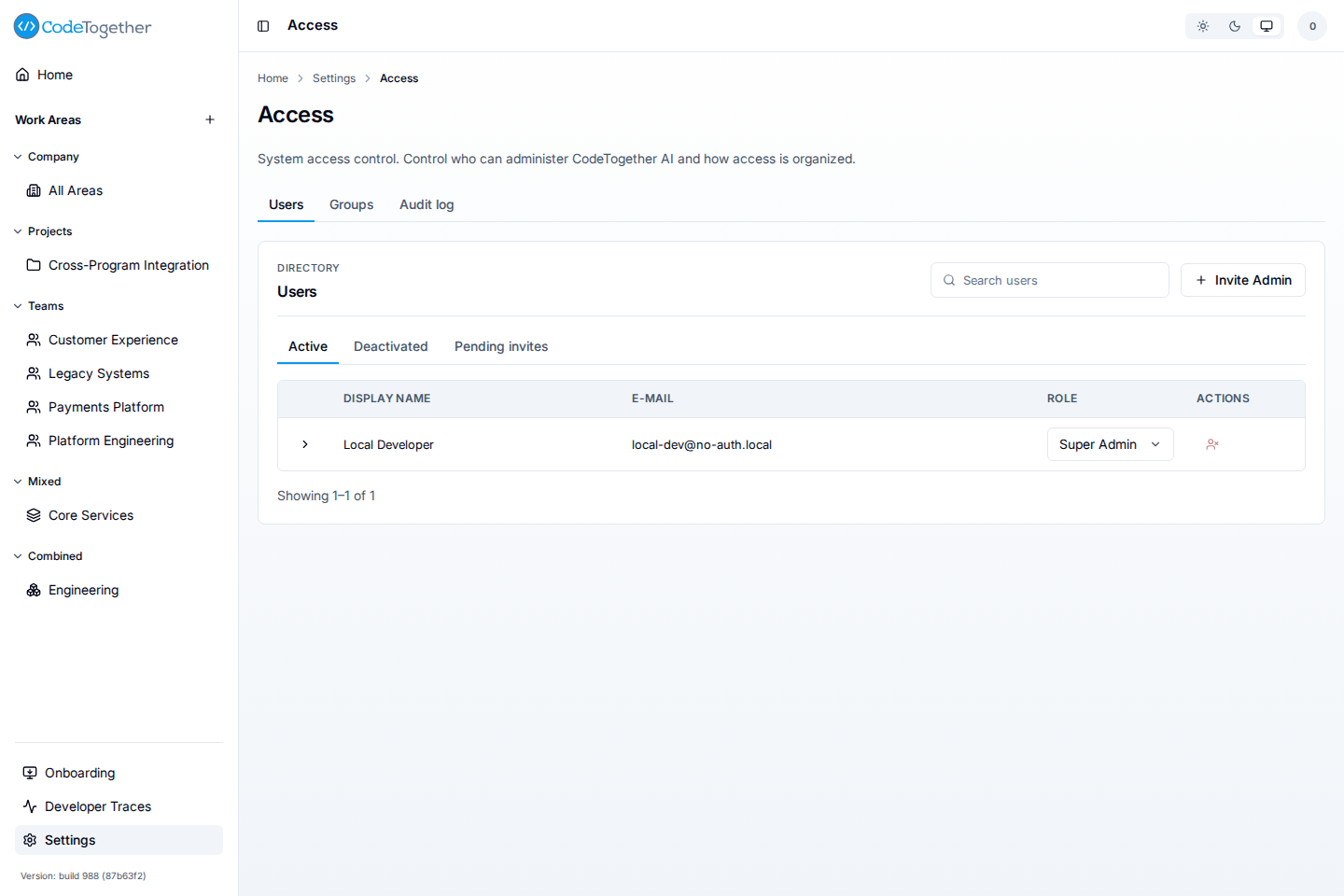
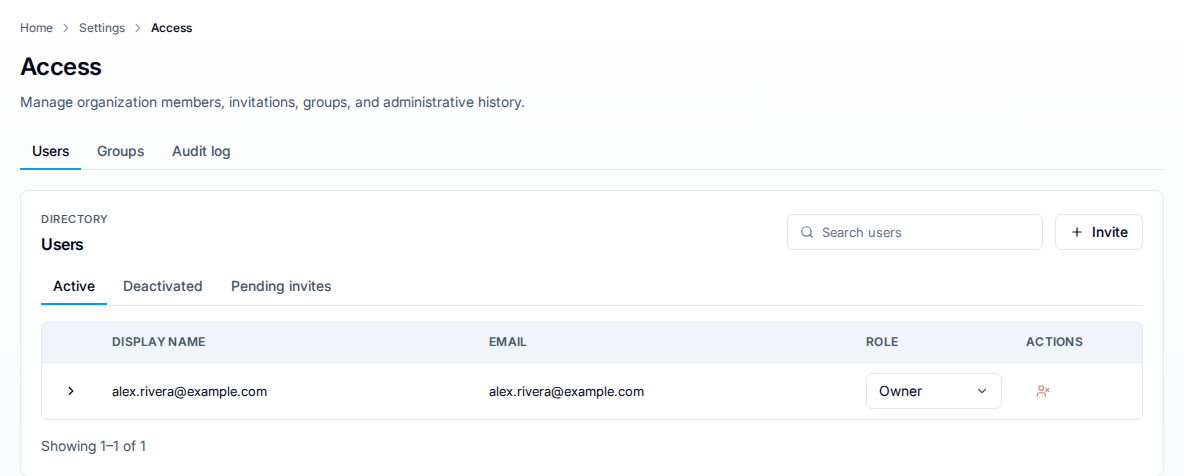
Precedence is Owner then Admin then GlobalViewer then Member. When several grants confer different roles, for example a direct grant and a group, the strongest applies.
What each tenant role can do
Owner exceeds Admin in exactly three capabilities: billing, Owner management, and tenant deletion. The following table lists every tenant capability and the roles that satisfy it:
| Capability | Owner | Admin | Global viewer | Member |
|---|---|---|---|---|
| Manage billing | Yes | No | No | No |
| Promote or demote Owners | Yes | No | No | No |
| Purge the tenant | Yes | No | No | No |
| Manage tenant settings, such as transactional email | Yes | Yes | No | No |
| Create, edit, and delete work areas | Yes | Yes | No | No |
| Manage users, groups, and role grants | Yes | Yes | No | No |
| Configure source and provider integrations | Yes | Yes | No | No |
| Issue activation codes for workstation setup | Yes | Yes | No | No |
| Force-verify a committer email | Yes | Yes | No | No |
| Link and unlink developer identities, and act on merge candidates | Yes | Yes | No | No |
| Open developer activity trace surfaces | Yes | Yes | No | No |
| Force a report to regenerate | Yes | Yes | No | No |
| Rebuild all analytics models for the tenant | Yes | Yes | No | No |
| Reprocess AI analysis payloads | Yes | Yes | No | No |
| Collect and download support bundle logs, and read recent problem reports | Yes | Yes | No | No |
| View every work area in the tenant, read-only | Yes | Yes | Yes | No |
| Sign in and view their own activity | Yes | Yes | Yes | Yes |
Two of those capabilities have a screen of their own: Merge candidates on Settings > Developers proposes identity pairs to link, and Recent problem reports on Settings > Data / Maintenance lists what clients reported. Owner and Admin reach both.
Grant Owner sparingly. The platform blocks removal of the last remaining Owner grant, so an organization always retains one.
Work area roles
Work area roles apply to a single work area. Admin, Viewer, and Self-only are granted to a user or to a group; Owner is granted only to a user, and only by reassigning ownership. Owner, Admin, and Viewer rank strongest to weakest; Self-only is the weakest of the four — see Understand how grants combine for how it interacts with a stronger grant. The following table lists them:
| Role | Wire value | Portal label | Summary |
|---|---|---|---|
| Owner | Owner | Owner | Full control of the work area, including reassigning ownership |
| Admin | Admin | Admin | Edit the work area and its grants |
| Viewer | Viewer | Viewer | Read the aggregate dashboards |
| Self-only | SelfOnly | Self Only | See only their own activity within the work area |
Every role list that offers Self-only spells it Self Only, and a member's work area role can be changed in place from the Manage access drawer. An Owner row has no role list: it reads Owner with Change with Transfer ownership under it.
Self-only narrows what one person sees, and it never overrides a stronger grant from another source. A self-only member with no other grant on the work area sees only their own activity inside its filter. If the same person also holds Viewer or Admin on that work area, directly or through a group, the most-permissive-wins rule in Manage access with groups applies, and the stronger grant wins.
What each work area role can do
The following table lists every work area capability and the roles that satisfy it:
| Capability | Owner | Admin | Viewer | Self-only |
|---|---|---|---|---|
| Reassign work area ownership | Yes | No | No | No |
| Edit the filter, grants, and display name | Yes | Yes | No | No |
| Force a report to regenerate | Yes | Yes | No | No |
| Open the Tracking tab | Yes | Yes | No | No |
| Read the aggregate dashboards | Yes | Yes | Yes | No |
| Open their own activity view in the work area | Yes | Yes | Yes | Yes |
The Tracking tab is a diagnostic roster of which developers are reporting, and a work area shows it only to its Owner and Admin. A tenant Owner or Admin inherits that, so they see it everywhere. Anyone else does not see the tab at all, rather than seeing it disabled.
Tenant roles and work area roles are separate
Holding a tenant role does not by itself decide what a given work area shows, because a work area carries its own membership. The two interact in exactly two places:
A tenant role maps onto every work area as a floor. Owner and Admin hold work area Admin everywhere, and Global viewer holds work area Viewer everywhere, whether or not the work area lists them. So a tenant Admin can edit any work area's filter and grants, force any report to regenerate, and open any work area's Tracking tab, and a Global viewer reads every work area's dashboards.
Nothing raises a person's tenant role, though. A work area Owner is the owner of that work area and nothing more; it confers no tenant capability. Everything a tenant role does not already cover is governed by the work area's own grants.
Roles an invite can carry
An invite offers a narrower set of roles than the grant lists do, because two of the four tenant roles are never handed out by invitation. The following table lists how someone reaches each one:
| Tenant role | Offered on an invite | How someone gets it |
|---|---|---|
| Owner | No | Someone who holds it grants it from the Role list on Settings > Access > Users, after the person accepts. On-premises that option reads Super Admin |
| Admin | Yes | Every invite from Settings > Access > Users carries Admin |
| Global viewer | Yes, on SaaS | Invite them as GlobalViewer from the SaaS Invite user dialog on Settings > Access > Users, or change their role on Settings > Access > Users afterward |
| Member | No | Invite them from a work area, which grants Member plus that work area's role |
An invite decides only the role the person starts with. Their role afterward is whatever Settings > Access > Users and their groups confer, so treat that page as authoritative for anyone already in the organization.
Related
- Invite users to your organization — choosing the role an invite carries.
- Work areas — what a work area role applies to.
- Members and developers — why access and activity attribution are separate.
- Create a work area — granting roles on a new work area.