Connect integrations
Use this guide to connect the two external systems CodeTogether AI works with: source control and, on on-premises deployments, an AI analysis provider. You'll find both at Settings > Integrations. Neither is required for basic capture, but each improves what the product can tell you.
- Deployment: SaaS, On-premises
- Role: Owner, Admin
Only system Owners and Admins can manage integrations. GitHub is available on both deployments, but the two connect differently. An AI analysis provider is a self-service connection on on-premises only; on SaaS it is enabled by contacting sales.
Before you begin
To connect an integration, you need all of the following:
- Owner or Admin on the organization: Managing integrations requires one of these roles. See Roles reference.
- For GitHub: permission to install a GitHub App in your organization. On on-premises, also permission to provision a GitHub App from a manifest.
- For an AI provider, on-premises only: an account with one of the supported providers, and its API key. Ollama and a custom OpenAI-compatible endpoint also need the endpoint's URL and a model name.
Connect GitHub
CodeTogether AI captures commits, files and lines changed, branches, commit-to-push lag, and work-item flow natively, without connecting anything. Connecting GitHub is enrichment on top: it adds pull-request and merge-outcome data, so the product knows what actually merged rather than only what was pushed.
On SaaS
CodeTogether AI provides its own GitHub App: you provision nothing and manage no credentials.
- Go to Settings > Integrations > Source Control. Before anything is connected, the GitHub card reads Disconnected and GitHub isn't connected.
- Select Connect.
- Choose the GitHub organization and the repositories to install the App into, then complete setup on GitHub. You're returned to the Source Control tab when it finishes.
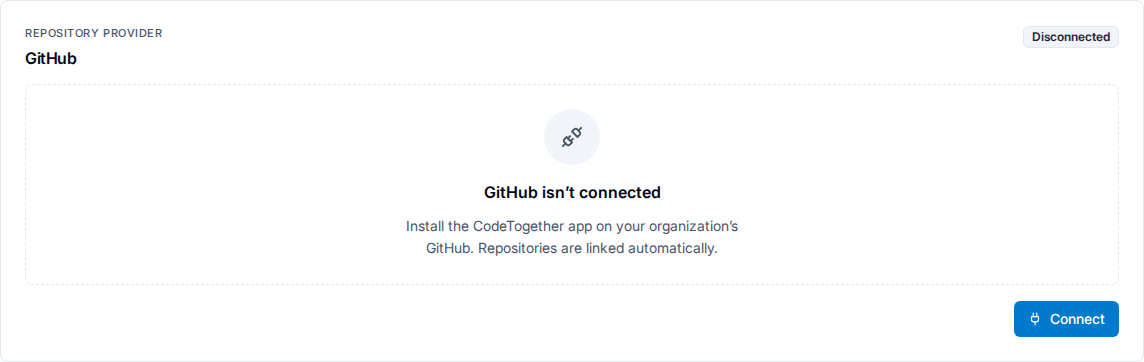
On SaaS, GitHub is optional for tracking: repositories on any host can be tracked by adding them by hand at Settings > Activity Tracking > Repositories. See Set up CodeTogether AI SaaS.
Repository access is chosen during the GitHub App installation, not on this page. To change it, select Manage repositories on GitHub rather than disconnecting.
The connection card carries one of nine statuses. Connected and Syncing need nothing from you; Disconnected and Disabled mean no installation is connected; Plan locked means the plan does not include GitHub integration, and Reconnect required and Error mean the connection needs repair before sync continues.
The remaining two are the setup states. An installation you start and leave unfinished on GitHub reads Pending setup, and Setup expired after it stops waiting for verification. In both, the card's repair button reads Resume setup rather than Reconnect, and selecting it takes you back to the installation you left.
The GitHub connection card on SaaS, showing account, host, repository access, and webhook health for the connected App.
On-premises
Each on-premises deployment provisions and owns its GitHub App, so credentials stay in your environment rather than CodeTogether's.
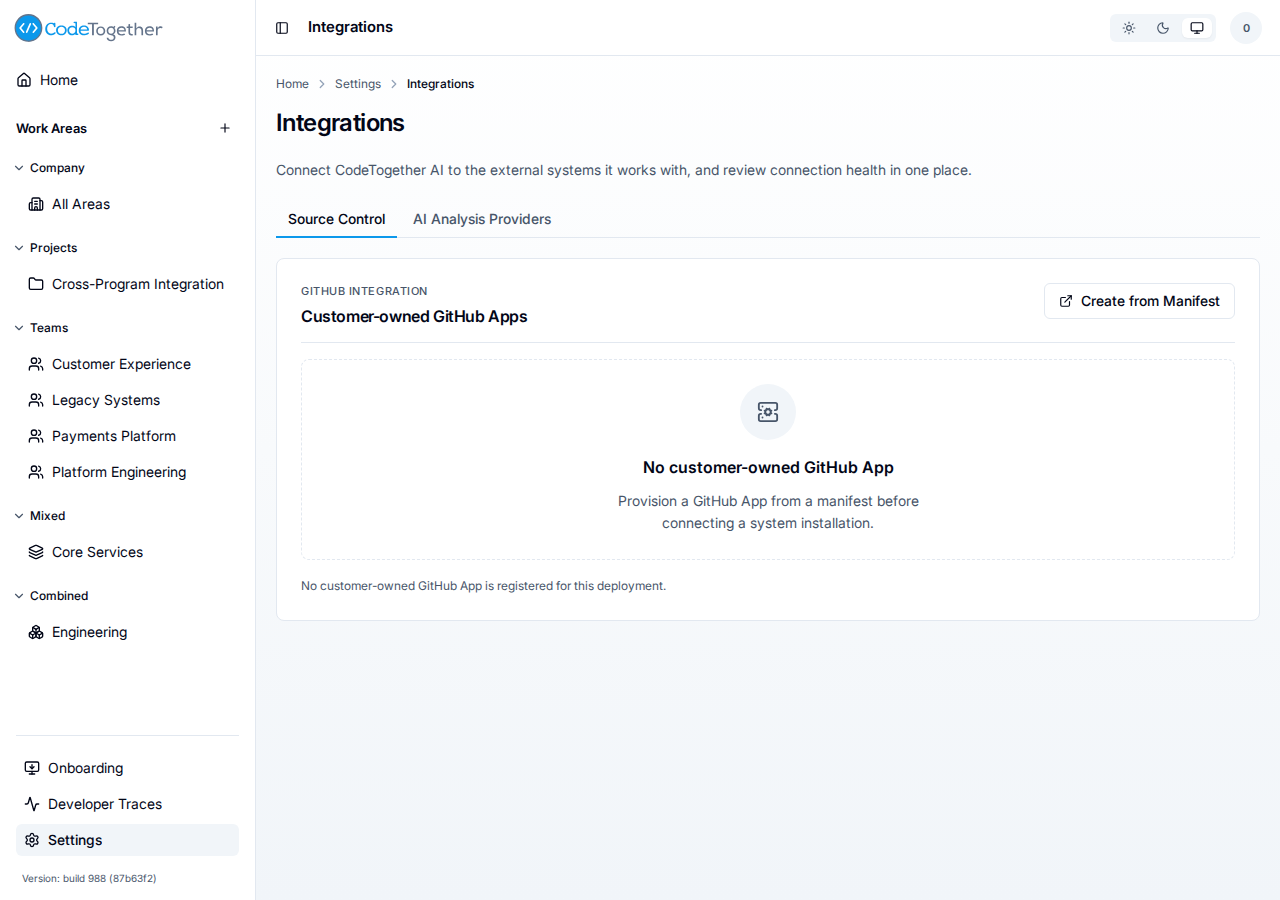
- Go to Settings > Integrations > Source Control.
- Select Create from Manifest to provision a GitHub App.
- Select Connect on the new registration to install the App.
After you provision an App, the registrations table lists it under the columns App, Status, Host, Sync mode, Credentials, Last verified, and Actions. A registration's status reads Active, Pending, Degraded, or Disabled. The row's actions are Connect or Disconnect, whichever applies, together with Rotate, which opens Rotate credentials, and Enable or Disable.
Both deployments
Only GitHub is supported: no Bitbucket, GitLab, or Azure DevOps connector exists, and no issue-tracker connection is needed.
Connect an AI analysis provider
This connection provides the model that powers CodeTogether AI's own analysis: the value point scores, the summaries, and the narrative descriptions in developer traces. Without a provider, scoring falls back to the deterministic heuristic and reads as heuristic fidelity.
On SaaS, this connection is not self-service. Contact sales to enable it as part of detailed value analysis on a Company plan.
On-premises, connect a provider yourself:
- Go to Settings > Integrations > AI Analysis Providers.
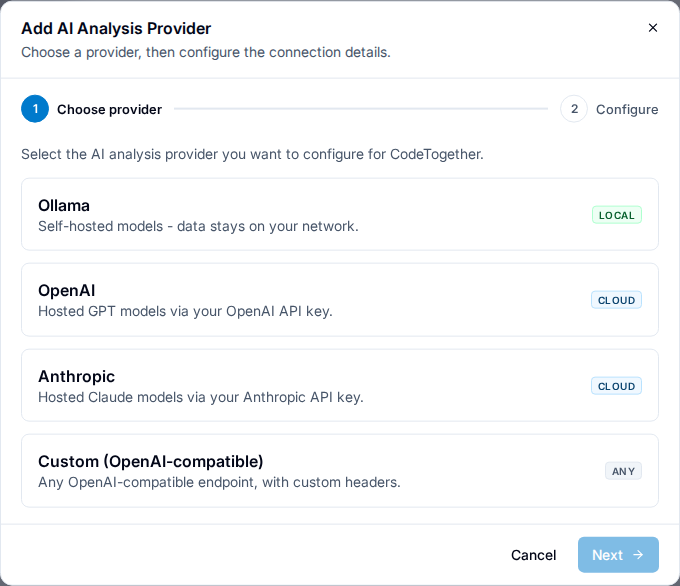
- Select Configure on the tab. The Add AI Analysis Provider dialog opens on its Choose provider step.
- Choose the provider: Ollama, OpenAI, Anthropic, or Custom (OpenAI-compatible). Choosing one opens the dialog's second step, so the Next button beside it is only for a provider you have already chosen.
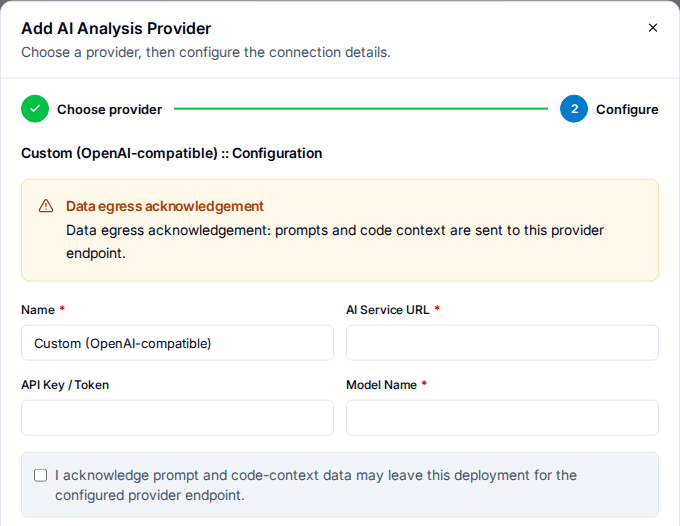
- Set the connection fields the provider asks for. Every provider has Name and a key field, which reads API Key for Anthropic and API Key / Token elsewhere; the key is write-only and is not shown again. Ollama and Custom (OpenAI-compatible) add AI Service URL and Model Name, which OpenAI and Anthropic take from their own defaults and do not show.
- For every provider except Ollama, select the acknowledgement that prompt and code-context data may leave this deployment for the endpoint you configured. Ollama shows a Local inference notice in its place, since the prompts reach only the endpoint inside your network.
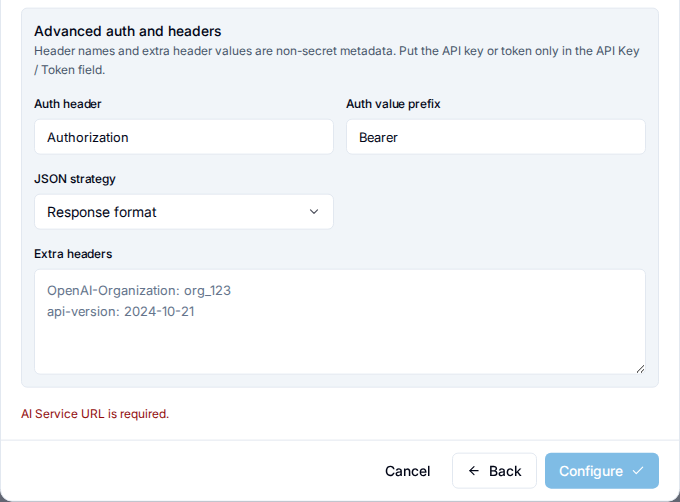
- Optional: change Advanced auth and headers. It arrives filled in for an endpoint that takes a bearer token, so leave it as it is unless your provider wants a different header, prefix, JSON strategy, or extra headers.
- Select Configure to save the provider.
- On the provider's row, select Test, then Activate.
Each configured provider gets a row on the tab under the columns Provider, Active, Endpoint, Model, Secret, Last test, and Actions, whose actions are Edit, Test, Activate or Deactivate, and Remove.
You can keep several providers configured and activate or deactivate them. The provider you connect is your own account, your keys, and your spend. CodeTogether AI does not supply the model and does not train on your code or data. Usage is deliberately lightweight, so the impact on your token budget is small.
Connecting a provider is what makes full fidelity scoring possible. See Tune value points to check whether content analysis is on and adjust it.
Check what is connected
Home carries a System health section for organization administrators, and its Integrations tile counts the integrations that are working, as in 1/2 connected. The denominator is the integrations the deployment can have, not a fixed two: on-premises it is source control plus an AI analysis provider, dropping to 1 where the plan has no AI analysis, and on SaaS it is source control alone, since an AI provider there is not a self-service connection.
A connection only counts once it is working, so a GitHub App still at Pending setup, or a provider that is configured but not activated, leaves the tile one short. Read the per-connection status on the Source Control and AI Analysis Providers tabs to see which one.


What connecting an AI provider does not change
Connecting a provider does not change your AI spend numbers. Token usage and AI dollar cost are captured natively from your developers' own tools and priced by a built-in catalog. The provider you connect powers CodeTogether AI's analysis, not your developers' work.
Troubleshooting
Value points read as unavailable or heuristic
No AI analysis provider is active, so full-fidelity scoring cannot run. On-premises: connect and activate a provider, then recalculate. SaaS: contact sales, since self-service provider connection is not available. See Tune value points.
A repository is missing from a work area picker
The picker is the Repositories list in a work area's settings drawer and in the create form, described in Create a work area. It lists the repositories already selected, and shows no search results until you type into the Search repositories field, whose placeholder reads Search by name or repository URL.
A search returns at most 50 matches and says so, so a repository can be absent because it fell outside them. Narrow the search before concluding anything else.
If the search returns No repositories match the search., the repository is outside what the connected GitHub App reaches: connecting GitHub narrows the picker to the repositories the App grants access to, so confirm the App's installation covers the one you expect. Without a source-control connection the picker searches every repository CodeTogether AI has seen.
If this doesn't fix it
Contact support with all of the following. Tickets missing these take longer to resolve:
- The integration type and, for GitHub, the App's status and host from the Source Control tab.
- For an AI provider, the provider kind and whether Test succeeded.
- Your deployment kind and server version.
Related
- Value points — what full-fidelity scoring feeds.
- Tune value points — enabling content analysis alongside a provider.
- Roles reference — who can manage integrations.