Tune value points
Use this guide to adjust how value points are scored for your organization. You'll edit the strategic focus prompt, test it against real changes, save it as a new policy version, and apply it to existing reports.
- Deployment: On-premises
- Role: Owner, Admin
On SaaS, Settings > General has no Output Analysis tab, so neither the strategic focus prompt nor the content analysis toggle is editable from the portal. For content analysis on SaaS, see Decide on content analysis.
Tuning changes the value points themselves. If the return read looks wrong, the lever may be your capacity assumptions rather than this page. See Set capacity assumptions.
Before you begin
To tune value points, you need all of the following:
- Owner or Admin on the organization: Editing tenant settings requires one of these roles. On-premises the system-level Owner role is displayed as Super Admin; the role itself is unchanged. See Roles reference.
- An AI analysis provider connected, for full-fidelity scoring: Without one, scoring falls back to size and static signals. See Connect an AI analysis provider.
- A clear definition of what your organization values: The prompt scores business value against it, so decide this before you write.
The scoring model's internal parameters are fixed and are not editable. Two controls are editable, both at Settings > General > Output Analysis on an on-premises deployment.
1. Write the strategic focus prompt
The strategic focus prompt is free text, up to 600 characters, injected into the AI analysis that scores business value. It is organization-wide and effective-dated, with no work area or project override.
- Go to Settings > General > Output Analysis.
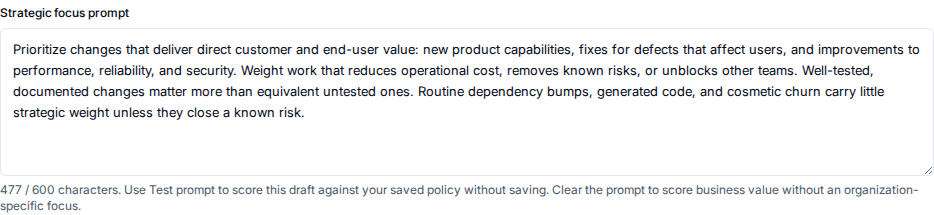
- Edit the strategic focus prompt to describe the outcomes that matter, so business value is scored against them. Clear the prompt to score business value without an organization-specific focus.
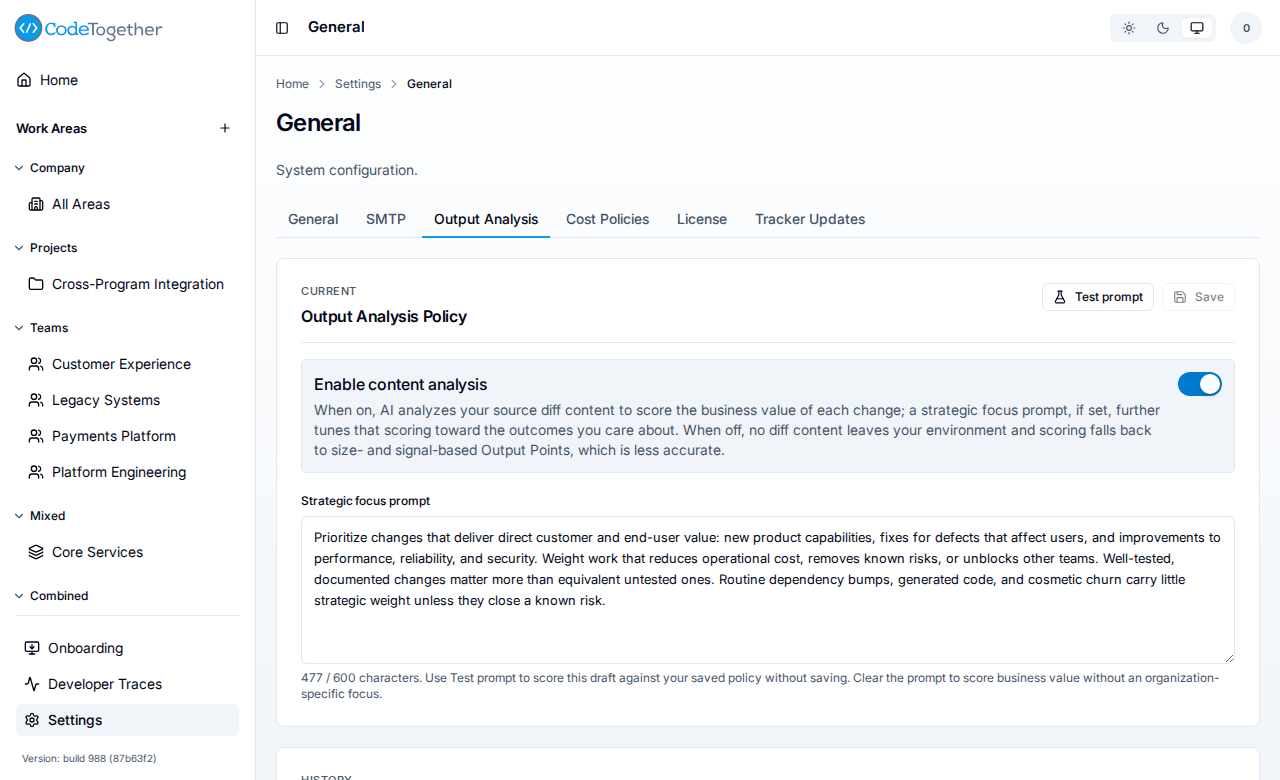
Describe the outcomes, not the code. The shipped default prioritizes direct customer and end-user value, defect fixes, performance, reliability, and security, and weights down routine dependency bumps and cosmetic churn. Rewrite it to match how your organization defines value, for example to signal that work on technical debt should not be penalized.
2. Dry-run the prompt before saving
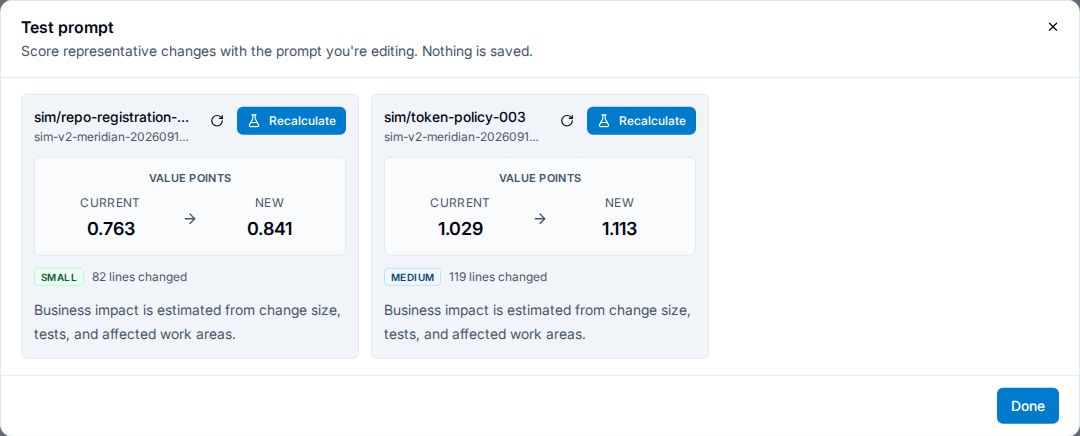
Use Test prompt to run a draft against three real changes, one small, one medium, and one large, without saving anything.
Review how each change scores under the draft before you commit it. The test does not change any stored score.
3. Decide on content analysis
The Enable content analysis toggle controls whether AI analysis reads your actual source diff:
- On: the diff is reviewed by your AI provider, producing the most accurate value, quality, and completeness scores, marked
fullfidelity. - Off: no source-diff content leaves your environment. Scoring falls back to size and static signals, marked
reducedfidelity and less accurate.
On SaaS: content analysis is not enabled by default, and the portal has no toggle for it. Contact sales to discuss enabling it for your organization.
On-premises: content analysis is off until you connect an AI analysis provider at Settings > Integrations > AI Analysis Providers. After a provider is connected, content analysis is on by default. Turn it off at Settings > General > Output Analysis only if you have strict data-residency requirements, and expect lower scoring accuracy as a result.

Turning content analysis off does not change the scoring model. The same formula runs; the fidelity marker only records how much evidence the score rested on.
4. Save the policy as a new version
Saving applies the policy to new analysis immediately and creates a new versioned policy. The previous version is preserved, so historical scores stay traceable, and history is never deleted.
Reset to defaults appends a new version from the built-in defaults and rejoins the managed-default pool, so later default changes track automatically again.
5. Apply the change to existing reports
New scoring applies to new analysis at once. To re-score work already reported, re-run analysis one of two ways:
- From the banner that appears after saving.
- Later, from the recalculate tab at Settings > Data / Maintenance. The tab and button read Recalculate Value Points when content analysis is active, or Recalculate Output Points before then.
Settings > Data / Maintenance carries up to four tabs: Rebuild analytics data, the recalculate tab, Generate support bundle, and Recent problem reports. Each one renders only for an administrator whose role carries the matching capability, so your tab strip can be shorter. Rebuilding analytics is a separate action that does not re-score anything: it rebuilds analytics from activity the platform has already processed, and does not replay the original tracking events.
Both re-score retained commits against the current policy, and both reach back about 30 days, because only that much commit detail is retained. Older history keeps the scores it was given at the time. Recalculation runs your AI provider over each commit, so it is slow and spends your own provider tokens, and needs a connected provider to run at all.
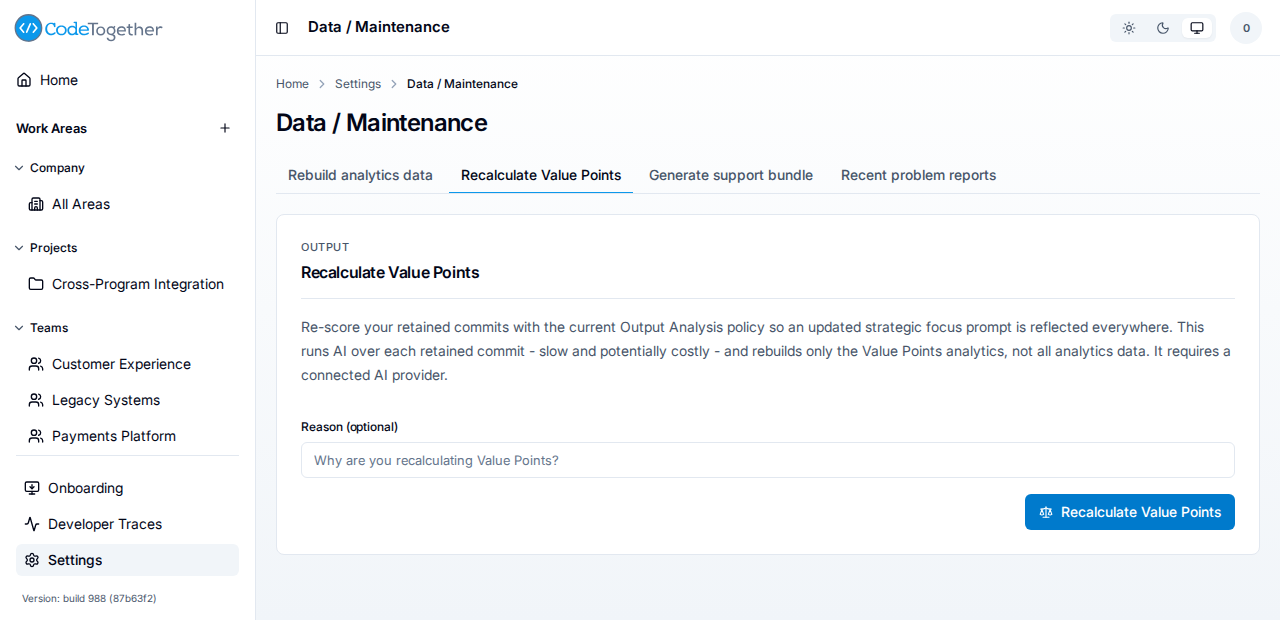
The panel's Reason (optional) field is recorded with the run; leave it empty if you have nothing to note.
One recalculation covers a bounded number of the newest retained commits. If your history is longer than that, the run finishes with a warning that the oldest commits were left out, and those commits keep the value points they already had. Running it again re-scores the same newest commits and stops in the same place, so select Continue with the remaining N commits on that warning instead; it picks up where the run stopped. A run in which some commits could not be scored finishes with a different alert, which offers Retry N commits for just those commits and, when not every failed commit can be retried, Run a full recalculation to start over from the newest commit.
Troubleshooting
A score reads as unavailable rather than a number
AI analysis has not run for that branch, so the analysis-derived scores are gated rather than shown as zero. Confirm an AI analysis provider is connected and content analysis is on, then recalculate. See Connect an AI analysis provider.
Value per dollar looks wrong after tuning
Tuning the prompt does not change what the work cost. Check your capacity assumptions at Settings > General > Cost Policies. See Set capacity assumptions.
The new prompt did not change historical numbers
Saving applies to new analysis only until you recalculate, and recalculation only reaches commits from about the last 30 days. Older scores keep the policy version they were given at the time.
If the recalculation finished with a warning that the oldest commits were left out, it hit the per-recalculation commit limit and those commits kept their previous scores. Select Continue with the remaining N commits on that warning rather than running the same recalculation again, which would re-score the same newest commits and stop in the same place. If the warning says the limit has to be raised first, ask your CodeTogether administrator.
If this doesn't fix it
Contact support with all of the following. Tickets missing these take longer to resolve:
- The policy version you saved and the strategic focus prompt text.
- Whether content analysis is on or off, and whether an AI provider is connected.
- The branch or report where the score looks wrong, and the value you expected.
- Your deployment kind and server version.
Related
- Value points — what each control feeds into.
- Set capacity assumptions — the capacity side of the return read.
- Connect an AI analysis provider — enabling full-fidelity scoring.