How tracking works
AITrax, the CodeTogether AI tracker, runs alongside the tools a developer already uses. Understanding the shape of it answers the two questions developers actually have: what do I have to install, and what do I have to change about how I work.
The short answer to both: one IDE plugin per IDE vendor, and nothing changes about how you work.
- Deployment: SaaS, On-premises
The tracker sits beside your tools
The AITrax tracker is a small set of companion processes that run on the developer's workstation alongside their existing IDE and agentic CLI. It is not a development environment, not a browser extension, and not a wrapper around the tools you use. It listens for activity and records it locally before sending derived signals to the server.
Three kinds of activity reach the tracker:
- IDE activity, forwarded from an IDE plugin as interval signals.
- Agent session activity, forwarded from the agentic CLI once setup has configured the repository for tracking.
- Git state transitions — commits, branch switches, pushes — observed by a resident process watching the repository.
All three converge in a per-repository local journal on the workstation. From there, the tracker uploads derived signals to the server. Raw file content and source code stay on the machine.
How work is associated with a repository
The tracker identifies a repository by a stable identity derived from its own Git history — not by its name, hosting URL, or a registration ID you assign. Cloning a repository to a different path, or working in a fork with the same history, resolves to the same identity.
Each session's activity is tagged with the repository and branch in scope at the time. The server uses these tags to assemble the per-branch record that value points and the Flow dashboard read from.
Work areas in the portal are filters over this per-repository record: a work area named "Frontend" that includes three repositories sees every branch and commit from those three repositories without any collection-time configuration change.
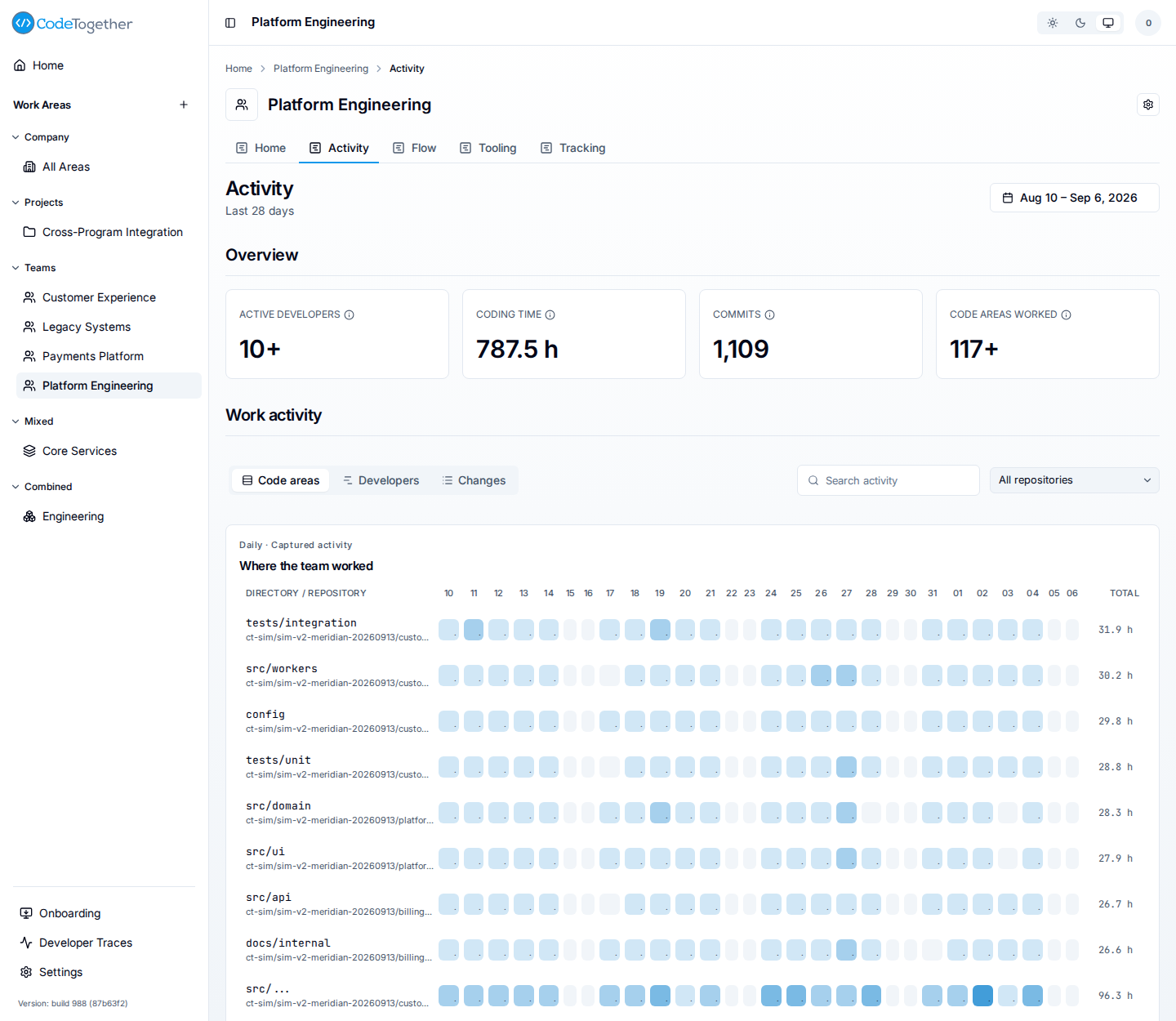
A work area's Activity tab is where the association is visible. Under Work activity, its Code areas view draws Where the team worked: one row per directory and repository pair with captured activity, one column per day for a range of 28 days or less and one per week beyond that, and a period total.
Integrations are per tool
The tracker integrates differently with each IDE and each agentic CLI, because each one exposes different hooks. The rule that matters to a developer is:
One IDE plugin covers the popular agentic CLIs that run inside it.
When you install the VS Code plugin, for example, setup also configures each tracked repository so that agentic CLIs such as Claude Code, Codex, and Cursor are tracked alongside your IDE work. You do not install a separate tracker for each agent.
A second IDE from a different vendor needs its own plugin.
If you use both VS Code and IntelliJ, you install both plugins. Each plugin is a thin event emitter for its own IDE's activity; they both report into the same local journal and appear as a combined record in the portal.
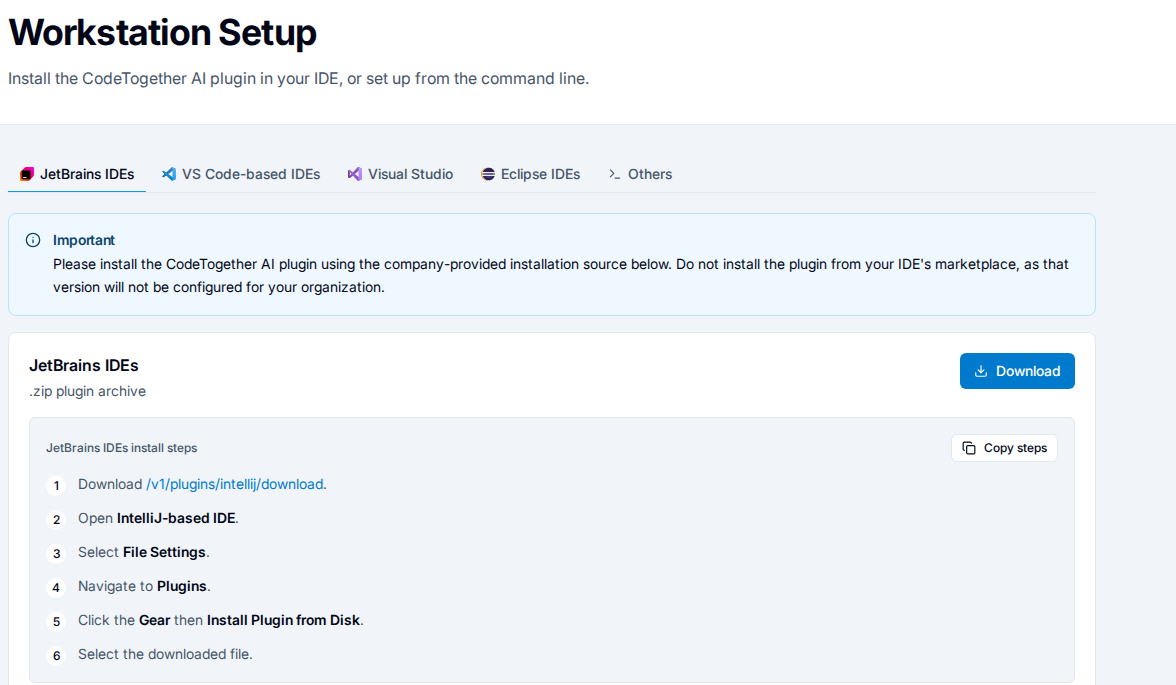
Supported IDE plugins: VS Code, IntelliJ, Eclipse, and Visual Studio. In an editor without a plugin, interval signals are not captured; Git activity in a configured repository is still observed by the resident process, so commits, branches, and merges remain visible.
What does not change about how you work
No login. The tracker uses your existing Git committer identity — the same name and email
in your git config — rather than a new account.
No new tool to learn. The agentic CLIs you use today keep working exactly as they do. Tracking is added alongside without changing how the tool behaves.
No change to your workflow. Tracking is passive. You do not start a session, stop a session, or tag your work. The tracker infers boundaries from what the tools themselves signal — when an agent session starts and ends, when a commit lands, when a branch switches.
For the steps to set up your workstation, see Set up your workstation.
Related
- What is captured — the capture boundary.
- How setup works — which command owns configuration.
- Set up your workstation — the developer's own steps.
- Files and locations — where the tracker writes on disk.