Verify your installation
Use this guide to confirm a workstation is set up and actually reporting. The built-in diagnostics answer the question faster and more reliably than checking files by hand, so start there.
- Deployment: SaaS, On-premises
The build your portal is running is in the left nav footer, under Settings.
1. Run the diagnostics
Run aitrax setup check first. It is read-only and takes under a second.
$ aitrax setup check
{
  "system": {
    "configured": true,
    "missing": [],
    "loginCleanup": {
      "state": "clean"
    }
  }
}
The output reports a system scope. If it shows as configured, setup is complete and you
can proceed to step 2. If it shows as not configured, see
Setup reports not configured.
Next, run aitrax health. It reads only the local tracker lifecycle log and never
contacts the server, so it is safe to run on a locked-down or air-gapped machine.
$ aitrax health
VERDICT: healthy
13 events across 1 file(s), 4 source(s); no problems.

RECENT ACTIVITY (last 7d | last 24h):
  ACTIVITY                           SOURCE        7D  24H
  Managed tracker lifecycle / probe  setup-check   8   8
  Managed tracker lifecycle / probe  post-tracker  2   2
  Telemetry upload OK                aitrax-full   1   1
  Telemetry upload OK                otlp          1   1
  Tracker process launch             post-tracker  1   1
  TOTAL                                            13  13
A healthy verdict means the tracker lifecycle is operating correctly on this workstation.
Reading the missing list
aitrax setup check includes a missing list. Entries in it follow a consistent naming
convention:
- No suffix (
claude-code-telemetry,copilot-cli-otel-env, and so on): the surface is expected but not configured. Either the tool is not installed, oraitrax setup systemhas not run since it was — install the tool if needed, then runaitrax setup system. -stalesuffix (claude-code-telemetry-stale): the configuration exists but points at a different server address than the one recorded in~/.codetogether/tracker/aitrax.json. Runaitrax setup systemagain to realign it.-foreignsuffix (claude-code-telemetry-foreign): a configuration you own is in place and AITrax respects it rather than overwriting it. This is informational, not an error.
Not every entry appears on every machine. AITrax configures only the AI tools that are actually installed, so an absent entry for a tool you do not use is correct, not a failure.
2. Check the integration files
After setup runs, these files should be present for each AI tool you use.
- macOS and Linux
- Windows
The following table lists the files aitrax setup system writes on macOS and Linux for
each supported tool:
| Tool | Path |
|---|---|
| Binary (core) | ~/.codetogether/tracker/aitrax |
| Binary (full build) | ~/.codetogether/tracker/aitrax-full |
| User config | ~/.codetogether/tracker/aitrax.json |
| Audit log | ~/.codetogether/aitrax.jsonl |
| Claude Code hooks and OTEL env | ~/.claude/settings.json |
| Claude Code CLI user MCP | ~/.claude.json |
| Cursor global MCP | ~/.cursor/mcp.json |
| VS Code Copilot user MCP | ~/Library/Application Support/Code/User/mcp.json (macOS) |
| VS Code Copilot user MCP | ~/.config/Code/User/mcp.json (Linux) |
| VS Code Copilot OTEL settings | ~/Library/Application Support/Code/User/settings.json (macOS) |
| VS Code Copilot OTEL settings | ~/.config/Code/User/settings.json (Linux) |
| JetBrains Copilot user MCP | ~/.config/github-copilot/intellij/mcp.json |
| Copilot CLI user MCP | ~/.copilot/mcp-config.json |
| Copilot CLI user hooks | ~/.copilot/hooks/aitrax.json |
| Copilot CLI OTEL env | .bashrc, .zshrc, .profile |
| Codex user config | ~/.codex/config.toml |
| Kiro user MCP | ~/.kiro/settings/mcp.json |
| OpenCode user config | ~/.config/opencode/opencode.json |
The following table lists the files aitrax setup system writes on Windows for each
supported tool:
| Tool | Path |
|---|---|
| Binary (core) | %USERPROFILE%\.codetogether\tracker\aitrax.exe |
| Binary (full build) | %USERPROFILE%\.codetogether\tracker\aitrax-full.exe |
| User config | %USERPROFILE%\.codetogether\tracker\aitrax.json |
| Audit log | %USERPROFILE%\.codetogether\aitrax.jsonl |
| Claude Code hooks and OTEL env | %USERPROFILE%\.claude\settings.json |
| Claude Code CLI user MCP | %USERPROFILE%\.claude.json |
| Cursor global MCP | %USERPROFILE%\.cursor\mcp.json |
| VS Code Copilot user MCP | %APPDATA%\Code\User\mcp.json |
| VS Code Copilot OTEL settings | %APPDATA%\Code\User\settings.json |
| JetBrains Copilot user MCP | %LOCALAPPDATA%\github-copilot\intellij\mcp.json |
| Visual Studio global MCP | %USERPROFILE%\.mcp.json |
| Copilot CLI user MCP | %USERPROFILE%\.copilot\mcp-config.json |
| Copilot CLI user hooks | %USERPROFILE%\.copilot\hooks\aitrax.json |
| Copilot CLI OTEL env | PowerShell 5.1 and 7+ user profiles |
| Codex user config | %USERPROFILE%\.codex\config.toml |
| Kiro user MCP | %USERPROFILE%\.kiro\settings\mcp.json |
| OpenCode user config | %USERPROFILE%\.config\opencode\opencode.json |
A missing file for a tool you do not use is expected. aitrax setup system writes only
the entries for tools it detects as installed.
The full path inventory, including which setup scope owns each file, is in Files and locations.
3. Confirm environment settings
This is the step most often missed when someone configures a tool by hand instead of
running setup. For the standalone Copilot CLI, aitrax setup system writes an OTEL
export block to your shell profile (.bashrc, .zshrc, or .profile on macOS and
Linux; PowerShell profiles on Windows) — but a shell profile alone only takes effect for
a process launched from a terminal that reads it, so setup also configures the same
environment where a shell profile cannot reach:
- macOS: a launch agent applies the environment at login, so a Copilot CLI session started outside a profile-reading terminal — from an IDE's integrated terminal, for example — still reports.
- Windows: setup also sets persistent user environment variables, for the same reason.
Other tools receive their environment through their own config files rather than the shell, so this step matters for the Copilot CLI specifically.
To verify that environment configuration is in place, run:
aitrax setup check
copilot-cli-otel-env in the missing list means the Copilot CLI environment block is
absent. copilot-cli-otel-env-stale means it points at a different server. Either
resolves by running aitrax setup system again, then opening a new terminal so the
profile is re-read.
Developers do not set these environment variables by hand. If a check reports something missing, re-running setup is the correct fix.
4. Confirm collection
Configuration and data collection are two separate claims. A workstation can be fully configured while uploads are blocked, so confirm that data is actually arriving.
-
Do a short piece of real work in a Git repository — edit a file, write a few lines.
-
Make a commit.
-
Check the local audit log for recent activity:
- macOS and Linux
- Windows
tail -20 ~/.codetogether/aitrax.jsonlGet-Content "$env:USERPROFILE\.codetogether\aitrax.jsonl" -Tail 20Recent entries confirm the tracker observed the commit. They do not confirm it reached the server, so continue.
-
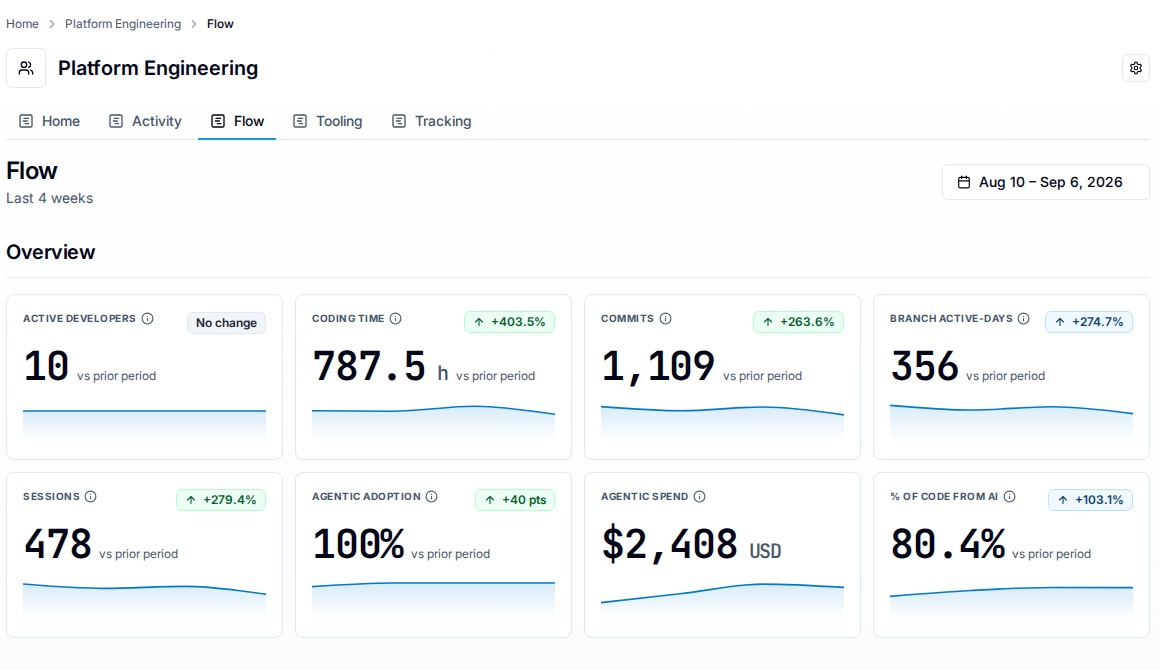
Sign in to the portal, open a team or project work area you belong to from Home, and select the Flow tab. Flow is the dashboard that carries commits and coding time.
-
Set the date range to include today. The range control at the top right defaults to the last four complete Monday-to-Sunday weeks, which ends on the most recent Sunday — so the commit you just made is outside it, and the dashboard will look unchanged no matter how long you wait. Widen the range to cover today, then allow a few minutes for processing and refresh.
Your own row in the Active developers table, under the Developer roster heading further down Flow, is the confirmation: its coding time, commit, and agentic-code figures are yours. Sessions are not a column there — the Sessions tile in Flow's Overview row is where a session count shows up. On the All Areas scope and on a Combined work area that section lists work areas rather than people, which is why this step names a team or project area.
The tab that carries the Activity label is a different dashboard, a heat grid of the directories the team worked in. A work area's full strip is Home, Activity, Flow, Tooling and Tracking, but Tracking is shown only to that work area's Owners and Admins, so as a developer you will usually see four tabs rather than five. See Dashboards for what each one is for.
If activity does not appear after other developers' activity from the same period has appeared, the next step is an administrator's: ask whoever administers your organization to work through No activity appears for a developer, which needs portal access you may not have.
Known failure modes
Blocked uploads look like a healthy install
If network access to the server is restricted, aitrax setup check and aitrax health
still report as healthy, because both commands read only local state. The tracker stores
data locally and retries uploads, so a blocked workstation looks identical to a
fully-reporting one until you check the portal.
If the local setup looks correct but you never appear in the portal, the upload path is the first thing to investigate. See No activity appears for a developer.
Invalid ~/.claude/settings.json skips the Claude Code hook step
aitrax setup system merges managed hook entries into ~/.claude/settings.json. If that
file is not valid JSON when setup runs, the step is skipped rather than overwriting
a file that may contain credentials or other user content.
aitrax setup check reports claude-code-telemetry in the missing list when neither a
managed nor a user-owned Claude telemetry block is present. If this appears after setup
ran, inspect the file for a JSON syntax error, correct it, and run aitrax setup system
again.
Related
- Files and locations — the full path inventory for every file setup writes.
- AITrax CLI reference — the commands used here.
- Setup reports not configured — when a scope fails.
- No activity appears for a developer — when data does not arrive.
- Confirm data is being collected — the administrator-side check.