Developer Activity and Work Overview
This guide explains how to read the Developer Activity on the project activity page and the Work Overview page for an individual developer.
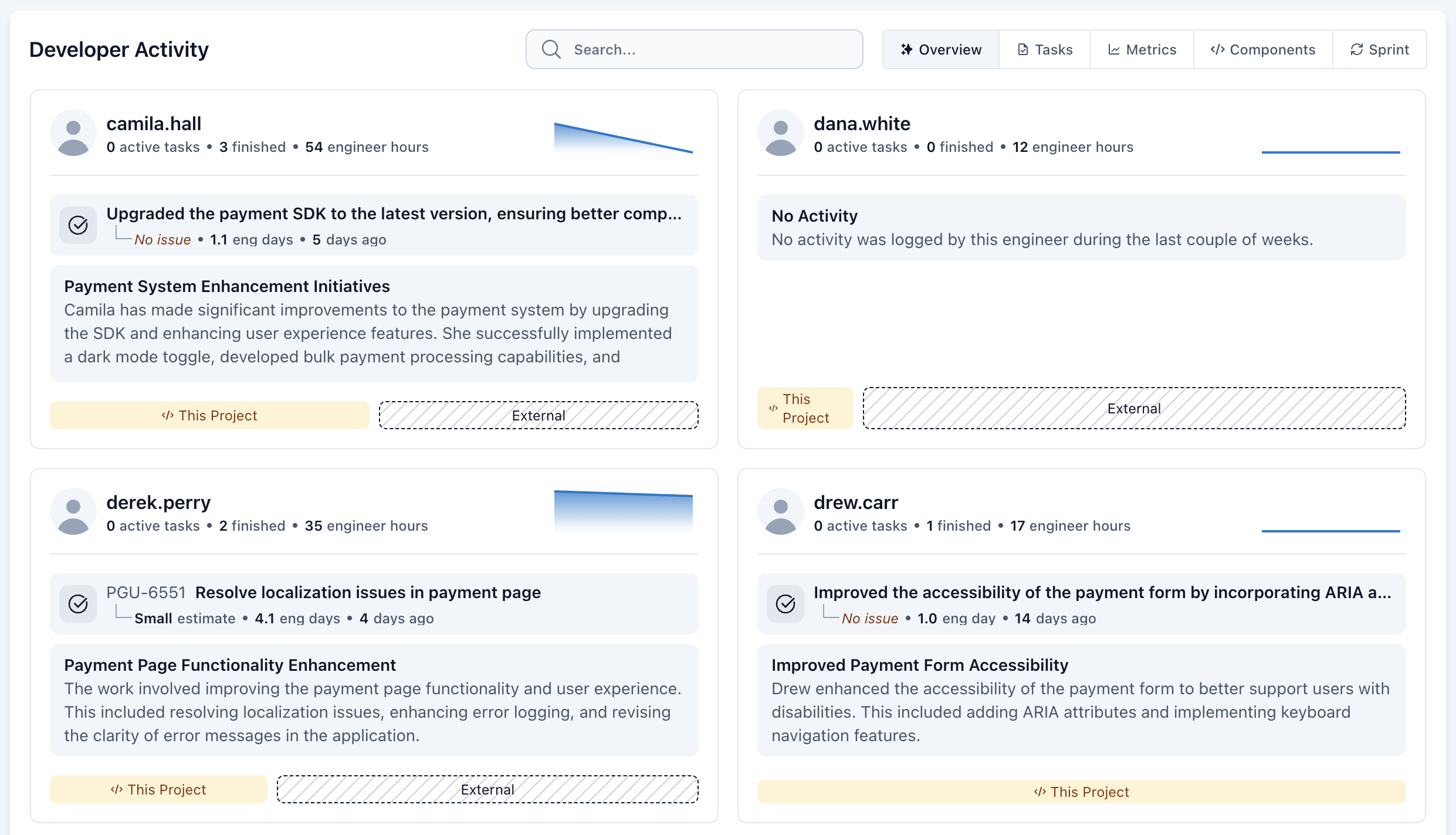
Developer Activity
This section covers how to interpret the Developer Activity views in the Portal, including task status (Active/Paused/Completed), sessions, and multi-day activity.
Work Overview
The Work Overview page is a developer-focused summary of recent activity. It helps you answer:
- What did I work on recently?
- How much activity was recorded?
- Which tasks were active, paused, completed, or spanning multiple days?
Daily Work
Daily Work groups tasks by date and shows, for each task:
- an icon indicating the task’s status (Active / Paused / Completed)
- “No issue” indicates the task is not linked to an issue/ticket (for example, when an issue tracker is not connected, or when the work can’t be matched to a specific ticket)
- session count (how many separate work sessions were detected)
- indicators for multi-day work when applicable
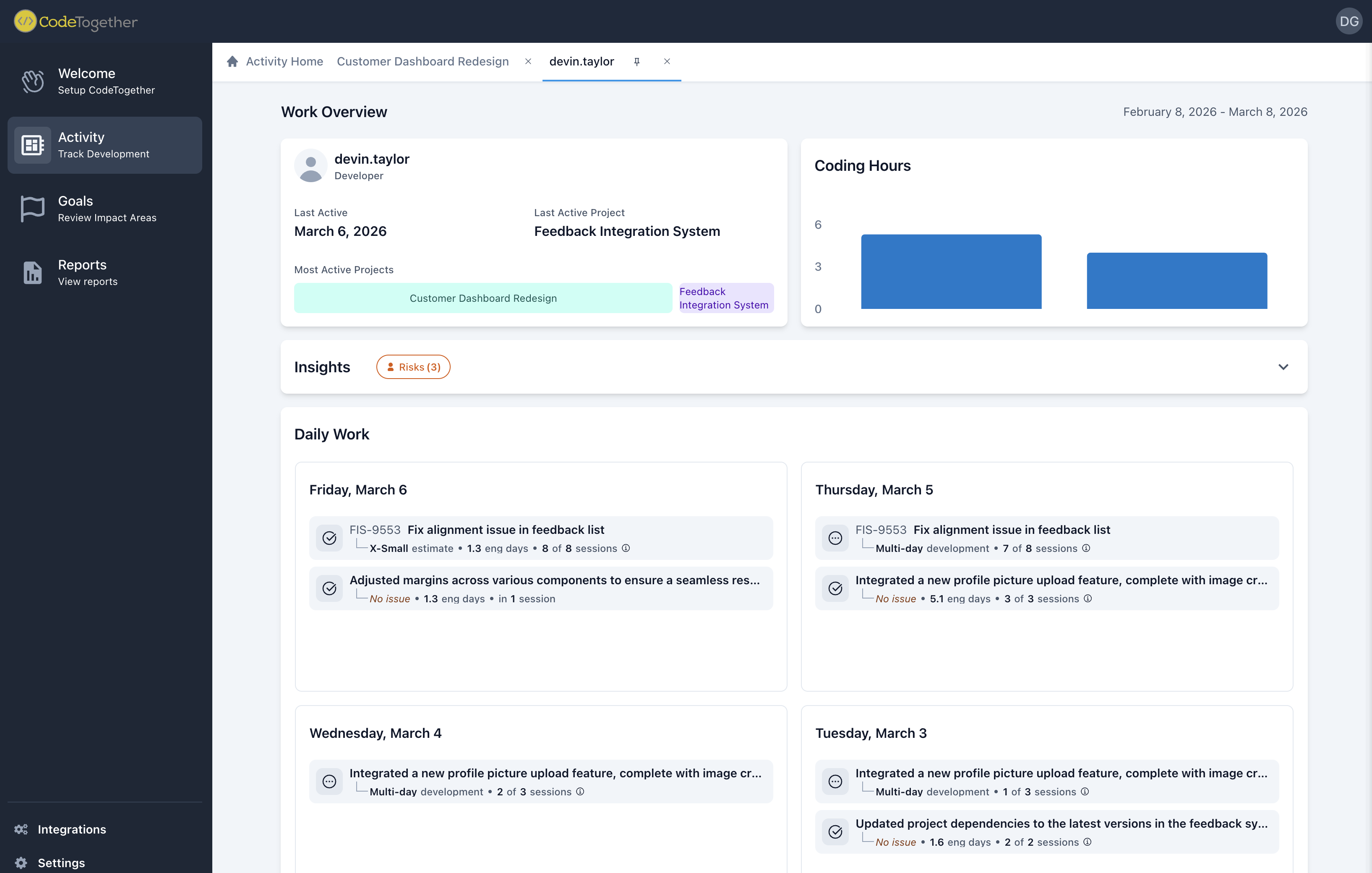
What you’ll see if an issue tracker is not connected
Because there’s no issue tracker integration, tasks may display:
- “No issue” (no linked ticket)
- N/A estimate (no estimate available from an issue tracker)
This is expected behavior for projects that are not integrated to an issue tracker.
Task status icons: Play, Pause, Complete
In task lists (like Daily Work and Developer Activity), each task has an icon that reflects its current status:
Play = Active
Work is currently in progress.Pause = Paused
Work is not currently in progress.Complete = Completed
Work on the task is finished.
Tip: When you see an Active label next to a task, it corresponds to the Play icon.
Task Work Log
This section covers how task-level work appears when you open a specific task from the Portal (status, sessions, multi-day indicators, and commit-based activity).
When does Active appear on a task?
A task shows Active when CodeTogether has detected activity on that task within the last 24 hours. If there’s no activity for more than 24 hours, the task will no longer be shown as Active - status changes to Paused.
What counts as “activity”
Depending on your setup, activity can come from different sources:
- IDE activity (when the developer is connected through the CodeTogether IDE extension): Activity detected from the IDE.
- Commit-only activity (commits detected without IDE connection): even if the developers does not have the IDE extension installed, other developers may upload their commits. Such commits will be visible as completed tasks associated with their authors.
Why might an active developer not see any active tasks?
If someone is actively working on something but none of tasks from today does not have Active status, the most common reasons are:
1) No IDE connection
If the developer isn’t connected via the CodeTogether IDE extension, CodeTogether may not see live activity for that developer. In this case:
- You may see no Active task at all until a trackable event is captured (for example, a commit is pushed and processed).
- If commits are captured later (by that developer or uploaded/processed through the system), the work may appear in the Portal as Completed.
- If the developer was previously connected and then loses connection temporarily, the task may appear Completed and then become Active again once activity resumes and is detected.
2) Work hasn’t appeared in the Portal yet
Sometimes the Portal may not reflect work immediately. This can happen if the developer hasn’t started to work on the task yet (no Active status in the IDE) or if the CodeTogether IDE extension hasn't synced activity yet. In these cases, the task may update after active work on the task is detected or the next sync occurs.
3) Activity is being captured for a different task/context
For example, work is happening on a different task than the one being viewed, or on a different branch/context than expected.
Helpful Tips
- Active is not a “live presence” indicator—it is a “recent activity” indicator within a 24-hour window.
- If you want Active to reflect ongoing work reliably, ensure the developer is connected via CodeTogether IDE extension, or confirm that Git activity (commits) is being captured for that task.
When does Paused appear?
A task shows Paused when it is not Active and not Completed. In practice, if no activity is detected for more than 24 hours, the task will appear as Paused.
When does Completed appear?
How Completed is determined depends on whether the project is connected to an issue tracker.
Projects with an issue tracker connected
A task’s status follows the status of the linked issue in the issue tracker (for example, when the issue is marked Done/Completed).
Projects without an issue tracker connected (non-connected)
A task shows Completed when CodeTogether detects that the most recent work session has ended (the latest activity for that task is no longer active). In non-connected projects, this commonly happens when a commit is recorded, because CodeTogether closes the current work session at commit time. As a result, in non-connected projects, a task may appear Completed after a commit, and then become Active again if the developer continues working on the same branch/task.
These two statuses are often confused but represent distinct states:
- Paused means CodeTogether detected work on the task in the past, but there has been no recent activity for more than 24 hours. This often happens when a developer switches context or ends the day without resuming the work.
- Completed means CodeTogether has detected a definitive end to the work session for that task, not just a gap in activity. A task will not automatically move from Paused to Completed based on inactivity alone.
What “sessions” mean
In the Portal, sessions represent the number of distinct calendar days when CodeTogether detected activity on a task.
- If a developer works on the same task multiple times on the same day (even with breaks), it still counts as 1 session for that day.
- If the developer works on the same task across multiple days, the task will show multiple sessions (one per day).
A session is not a coding session in the traditional sense, it's simply a calendar day of activity.
Example (switching branches in the same day)
If a developer works on two branches/tasks (A and B) in the same day, switching back and forth:
- Work + commit to A → switch to B → work + commit to B → switch to A → work + commit to A …
The Portal will still show two tasks for that day (A and B), and each task will show 1 session for that day.
What “multi-day” means
A task is multi-day when work on it spans more than one calendar day.
How it appears in the UI:
- Tasks spanning multiple days may show a multi-day indicator (such as a three-dot marker) on earlier days.
- In some views, you may also see a label like “Multi-day development”.
- In the Sessions area, you may see an info icon that shows which dates had activity.
This helps distinguish “started and finished the same day” from “ongoing work across days.”
Commit-based activity (no IDE connection)
In some environments, a developer may not be connected through CodeTogether IDE extension (or the CodeTogether IDE extension is unavailable). In that case:
- You may still see tasks and work recorded based on commits
- Time/activity breakdowns may be limited compared to fully connected IDE activity
What it means for your metrics in the dashboard
If you see tasks/commits but limited activity details, it usually means commit activity was captured, but IDE activity was not (for example, the developer wasn’t connected via the CodeTogether IDE extension).
Tip: To see current activity, make sure the developer connects the CodeTogether IDE extension.
Feature branch vs Main branch (how it shows in the Portal)
CodeTogether can distinguish between work happening on main development branches vs feature branches. This is configured using branch patterns in Project Settings → Task Management.
What you’ll see as a user
- Work done on branches that match your primary (main) branch patterns is treated as part of the main development workflow.
- Work done on other branches is treated as feature branch work.
This helps separate feature work from mainline work so teams can understand where effort is happening.
How this relates to task status (Active / Paused / Completed)
Branch classification (Feature vs Main) affects how work is grouped into tasks in non-connected projects, but it does not use PR merges to determine task completion.
If an issue tracker is connected
Task status is taken from the linked issue’s status in the issue tracker (CodeTogether does not infer completion from merges).
If no issue tracker is connected (non-connected)
CodeTogether groups work differently depending on the branch type:
Primary branches (e.g.,
main/master/develop)
Each commit is typically treated as a separate task/work item, because CodeTogether does not store “previous work” for non-feature branches (so work is not continued across commits on those branches).Feature branches
Consecutive commits on the same feature branch are typically associated with the same task, because CodeTogether stores the task info for that branch and can reuse the same work ID when more work occurs on that branch.
In non-connected projects, a task commonly appears Completed after a commit is recorded, because the current work session is closed at commit time.
If the developer continues working on the same feature branch later, the task can become Active again when new activity is detected.
Helpful tips
- Seeing “No issue” is normal when no issue tracker is integrated.
- Sessions indicate how many distinct calendar days activity was detected for the task.
- Multi-day means work spans multiple days (useful for understanding long-running tasks).
- Configure branch patterns to improve Feature vs Main visibility.