Set integration branches
Use this guide to tell CodeTogether AI which branches your teams integrate on. You'll open Delivery Tracking, list the branches, test a name against the list, and save.
- Deployment: SaaS, On-premises
- Role: Owner, Admin
Work committed on an integration branch counts as mainline work: pushing it completes the work sequence, the piece of work the platform measures and prices. Work on any other branch counts as delivered when it reaches the default branch. Each repository's default branch is always an integration branch, so this list is for the other branches your teams treat the same way.
Before you begin
To set integration branches, you need all of the following:
- Owner or Admin on the organization: Editing tenant settings requires one of these roles. On an on-premises deployment the Owner role is labelled Super Admin. See Roles reference.
- The branch names your teams integrate on: for example
develop, or a release line such asrelease/1.2andrelease/1.3. Branch names are case-sensitive here, as they are in Git.
1. Open Delivery Tracking
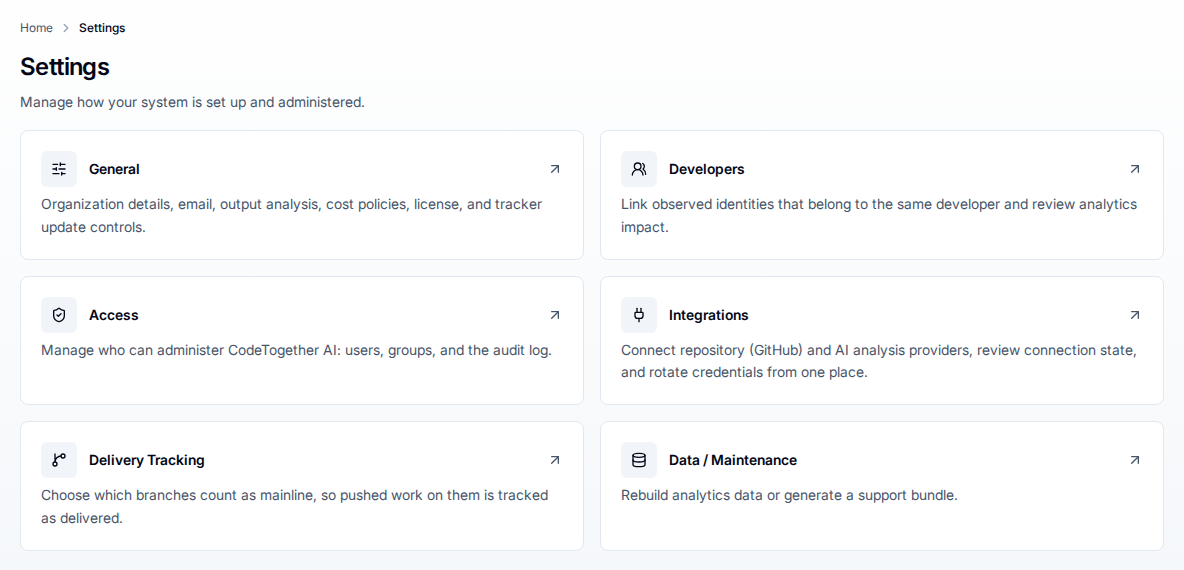
- Select Settings in the sidebar, then select Delivery Tracking. The page opens on the Integration branches card, which lists what your organization has set.
An organization that has set nothing reads "No integration branches yet - only each repository's default branch counts as mainline."
2. List your integration branches
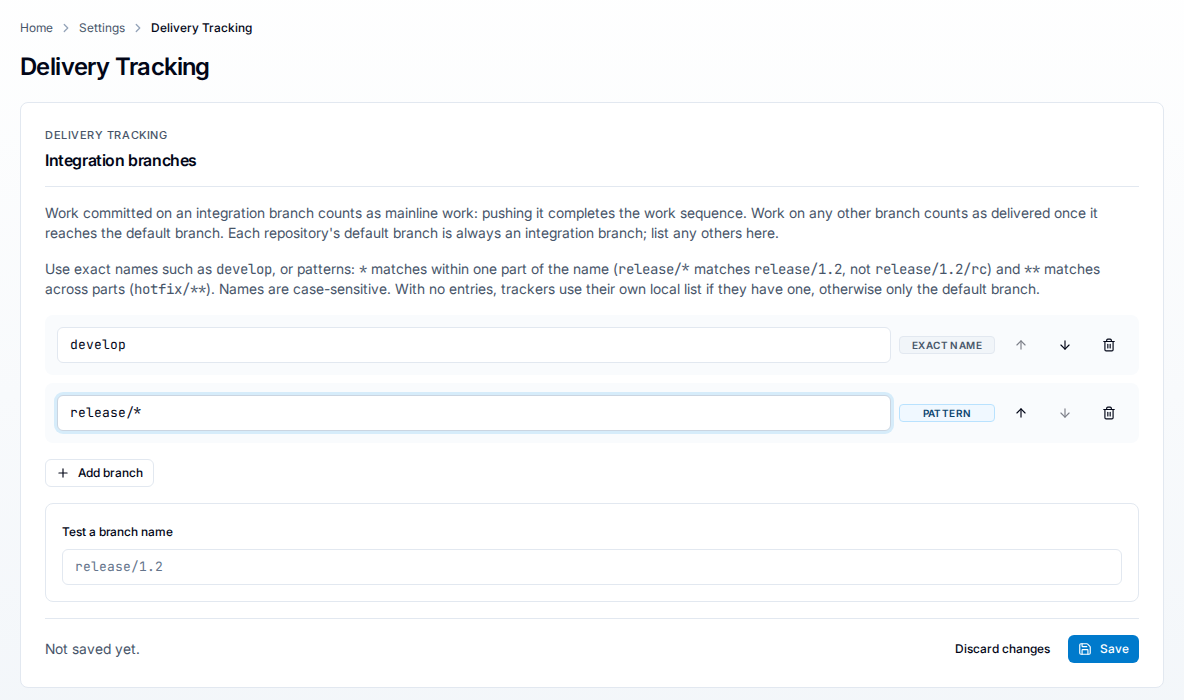
- Select Add branch. An empty row joins the list.
- Enter an exact branch name, such as
develop, or a pattern, such asrelease/*. The row is badged EXACT NAME or PATTERN according to what you enter. - Repeat for every branch that your teams integrate on.
- Optional: reorder a row with the up and down arrows at the end of it, or remove it with the bin. Order does not change which branches count as mainline — any entry that matches is enough — it decides only which entry Test a branch name reports when two of them cover the same name.
An organization can list at most 50 branches. At that point Add branch stops offering a row, and the card reads "You can list at most 50 branches."
What a pattern matches
A pattern matches a whole branch name. * matches any run of characters within one part of a name, and ** matches across parts, so a / stops * and does not stop **. A * can also match nothing at all, so feat/*x covers feat/x. Nothing else is special: an entry with no * in it is an exact name. The following table lists what each form covers:
| Entry | Matches | Does not match |
|---|---|---|
develop | develop | Develop, develop/v2 |
release/* | release/1.2, release/next | release/1.2/rc, release |
hotfix/** | hotfix/1.2, hotfix/1.2/rc | hotfix |
*-stable | main-stable | team/main-stable |
A pattern of * or ** on its own is rejected, because it would make every branch mainline.
3. Test a branch name
- In Test a branch name, enter a branch name your teams use.
- Read the answer under the field. A match names the entry that matched it, as in
release/1.2 is an integration branch (matches release/*).No match readsfeature/login is not in this list; it counts as mainline only if it is the repository's default branch.

The test reads the list on screen, including rows you have not saved, so you can check an entry before you commit to it.
4. Save the list
- Select Save. A confirmation reads "Integration branches saved", with "Trackers pick up the change when they next refresh their settings. Work already in progress keeps the classification it started with; new work follows the new list."
- Confirm the card footer reads Last saved with the date, the time, and the person who saved it. Until a first save it reads "Not saved yet."
A workstation refreshes its settings when its tracker starts and about once an hour after that, so allow up to an hour for the new list to be in force everywhere; a developer who restarts their machine or their IDE picks it up at once. No screen reports which list a given workstation is currently using, so plan the change rather than watching for it.
Discard changes returns the list to the last saved state, so use it to abandon an edit rather than deleting rows one at a time.
Saving is recorded for auditors: the entry reads Update integration branches on Settings > Access > Audit log, under the activity type Integration branches.
Troubleshooting
A row is marked invalid and Save is unavailable
Every row is checked as you type, and Save stays unavailable while one is invalid. The message under the row names the problem: A pattern cannot be empty. for a row you added and left blank, "develop" is listed twice. for a duplicate, "*" would match every branch; name the branches or a prefix such as release/*. for a pattern that would cover everything, and a message naming the character where the entry is not a valid branch name. Correct the row, or remove it.
A branch you expected is not in the list
Test it in Test a branch name and read which entry, if any, matched. Three things catch people out: the entry and the branch must match in case, * stops at a /, so release/* covers release/1.2 and not release/1.2/rc, and an entry matches the whole name, so release alone does not cover release/1.2. Use ** where the name has more parts than the pattern, as in hotfix/**.
Work is only counted as delivered when it reaches the default branch
That is the behaviour of an empty list: with no entries, each workstation falls back to a local list of its own if one was set there when the tracker was configured, and otherwise counts only the repository's default branch. A local list is per machine, so two developers on the same branch can classify it differently. Saving a list here replaces any local list on every workstation; clearing it again hands those machines back to their own. Add the branches your teams integrate on, then save.
Work in progress keeps its old classification
A tracker applies the list it had when the work started, so a change reaches work that starts after it. Allow up to an hour for workstations to refresh, and expect work already under way to keep the classification it started with.
Delivery Tracking is missing from Settings
The area is for organization administrators. Someone who holds neither Owner nor Admin does not see the card, and opening the page directly reads "Access required." See Roles reference.
The settings cannot be loaded or saved
A failed load reads "Unable to load delivery tracking settings" with Retry. A failed save reads "Could not save integration branches"; where someone else saved the list while you were editing, the save is refused rather than overwriting their list, so reload the page and apply your change to what they saved.
If this doesn't fix it
Contact support with all of the following. Tickets missing these take longer to resolve:
- The entries in the list, in order, and when it was last saved and by whom.
- The branch name you tested and the answer Test a branch name gave.
- The repository and branch whose work was classified differently from what you expected.
- Your deployment kind and server version.
Related
- Roles reference — who can edit tenant settings.
- How tracking works — the tracker that reads this list on the developer's machine.
- What is captured — the commit and branch data this classification applies to.
- Connect integrations — the pull-request and merge data that complements it.